A frozen smart gym screen can turn a smooth workout into an awkward pause. The treadmill hums, the belt moves, but the display stays locked on one image.
This problem matters more as fitness becomes increasingly digital. The American College of Sports Medicine’s 2025 Worldwide Survey of Fitness Trends again placed wearable technology among the leading industry trends. Its findings show how strongly members now expect connected training experiences. The IHRSA 2024 Global Report also reflects the expanding scale of health clubs and technology-supported services worldwide. More connected equipment means more opportunities for software, network, power, and sensor failures.
The screen may not be the real problem.
A frozen interface can result from a weak Wi-Fi signal, an overloaded operating system, outdated firmware, overheating, or a loose internal connection. Technicians often begin with simple checks because unnecessary part replacement increases downtime and cost. Power cycling, checking ventilation, and confirming network status can reveal useful clues. However, repeatedly unplugging commercial equipment may damage data or interrupt safe shutdown procedures.
This guide explains what to do when smart gym screen keeps freezing, using practical troubleshooting steps and manufacturer-recommended precautions. It also separates temporary glitches from faults requiring qualified service. Industry reports describe digital fitness growth, but they rarely measure screen-freezing incidents directly. That limitation matters. A confident diagnosis should come from observable symptoms, error codes, service records, and the equipment manual—not guesses. Even experienced operators can misread a frozen display. The careful approach is usually the safest.
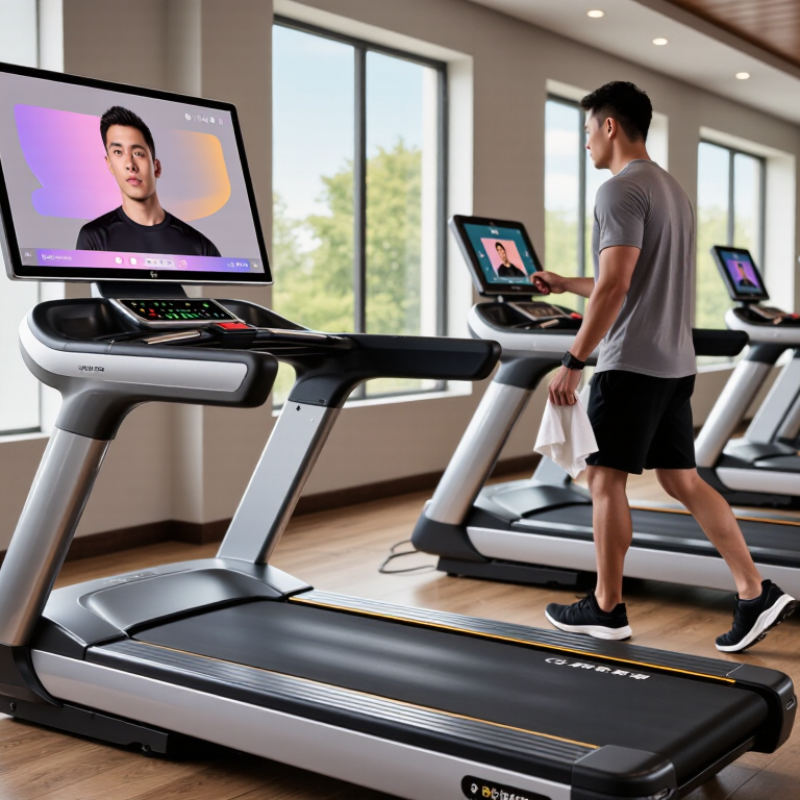
Map Freeze Symptoms to App, Network, Firmware, or Hardware Faults
A frozen screen does not always mean the display is broken. Watch the exact symptom first. If buttons stop responding, but the workout timer continues, the app may be stuck. Close it, reopen it, and check another user profile. Clear temporary app data only when your device instructions allow it. I once blamed the screen, but the fault followed one damaged workout file.
A loading circle usually points toward a network problem. Test another device on the same connection. If videos buffer while basic controls work, bandwidth or signal strength may be limiting performance. Move the router closer, pause large downloads, and reconnect the gym equipment. A complete freeze after an update suggests firmware trouble. Record the update date, error message, and restart pattern before contacting support. Details matter.
Hardware faults leave physical clues. Look for touch dead zones, flickering lines, random brightness changes, or a screen that freezes after warming up. A black display with working sounds may involve the panel or internal connection. Disconnect power only as the equipment manual permits, then inspect cables for looseness or damage. Avoid opening sealed components. That can create a second fault. Compare the failure across workouts, networks, and users. Repeated symptoms across every setting point away from the app and toward firmware or hardware. My first diagnosis is not always right. Evidence should change it.
When a smart gym screen freezes, Wi-Fi strength may not be the real problem. A stable connection matters more than a high speed-test result. For a useful comparison, test whether your network can sustain the 15 Mbps benchmark commonly used for 4K streaming. This should be steady, not a brief peak. A screen may still freeze when speed looks acceptable because of packet loss, interference, or high latency.
Tips: Run the test beside the gym equipment, not beside the router. Repeat it during busy evening hours. If possible, connect the screen through Ethernet. Otherwise, use the less crowded 5 GHz band and keep the router away from metal exercise frames. Check for other devices uploading videos or downloading large files.
I have seen frozen displays recover after reducing wireless congestion, even when the measured speed exceeded 15 Mbps. That result can feel confusing. It shows why bandwidth alone cannot prove the cause. Restart the screen, router, and fitness app separately, then test after each change. Record the time, speed, latency, and whether freezing returns during movement. A loose cable or overheating device can imitate a network failure. Also, some screens buffer poorly and need more than the minimum benchmark. The 15 Mbps figure is a practical reference, not a guarantee.
Why Does My Smart Gym Screen Keep Freezing?
A frozen gym screen is not always a cache problem. Check available storage first. When storage falls below roughly 10–15%, updates, logs, and temporary files may compete for space. This percentage is a practical warning, not a universal rule. The 2024 International Data Corporation report recorded 1.24 billion smartphone shipments worldwide, showing how heavily modern devices depend on constant software processing. Your screen may face similar pressure, especially after months of workout history and downloaded media.
Memory deserves a closer look. Open the system settings and review recent applications, then close unused workout tools, streaming services, and browser pages. The 2024 State of Mobile report estimated 4.2 trillion hours spent in mobile apps globally. That figure does not prove your display is overloaded, but it shows how demanding software habits have become. I once cleared the cache immediately. That was too quick. A restart often releases temporary memory without removing useful settings.
After checking storage and background apps, install pending system updates and power-cycle the equipment. Leave several gigabytes free when possible. If the screen still freezes, clear the cache for the affected application only. Do not erase app data unless you have confirmed your workout records are synchronized. Some troubleshooting guides make this step sound harmless. It is not always harmless. Record the time, temperature, and activity when freezing occurs; those details can reveal whether the issue follows prolonged workouts or a specific function.
Check storage, memory, and background apps before clearing the cache.
Low available storage, high memory usage, and many active background apps can reduce system responsiveness. Check these conditions first, close unnecessary apps, and restart the screen before clearing its cache.
Why Does My Smart Gym Screen Keep Freezing?
A frozen gym screen may be reacting to heat rather than software. I once blamed a faulty update, but the real problem was poor airflow behind the display. Check whether vents are covered by a wall, towel, cable, or dust. Leave clear space around the housing. Avoid placing the equipment beside a heater, sunny window, or closed cabinet. Warm air trapped behind the screen can raise internal temperatures quickly.
Compare the room temperature with the device’s stated operating range, often 0–40°C. This rating describes the surrounding environment, not the temperature inside the machine. A room at 35°C may still create dangerous internal heat during long workouts. Use a simple thermometer near the screen, then compare that reading with the manufacturer’s technical documentation. If the screen freezes after intense sessions, let the device cool fully before restarting. Repeated freezing deserves professional inspection.
Tips: Keep vents visible and dust-free. Measure heat near the screen, not across the room. Reduce direct sunlight. Do not place cold packs on the display, because condensation can damage electronics. Check whether freezing improves after ten minutes of cooling. If it does not, my ventilation theory may be incomplete; power, software, or a failing temperature sensor could also be involved.
Why Does My Smart Gym Screen Keep Freezing?
A frozen smart gym screen often points to outdated firmware, a damaged app installation, or unstable communication between the console and your network. Begin with the firmware update. Keep the equipment powered on, connect it to reliable Wi-Fi, and avoid using the screen during installation. A failed update can leave the display stuck longer than expected. Give it time.
The companion app also deserves attention. Close it completely, restart your phone, and reinstall the latest version from the official app store. Check Bluetooth, Wi-Fi, and local network permissions afterward. These small settings can block device communication. I once blamed the screen when my phone had silently disabled Bluetooth access. That mistake cost me an unnecessary service call.
Still frozen? Record the error message and note when the problem occurs. Then contact qualified support before resetting anything. If basic troubleshooting fails, perform a factory reset as the final step. Read the reset instructions carefully, because saved profiles, workout history, and custom settings may disappear. Disconnect external accessories first, if instructed. After resetting, install available firmware before restoring your preferences. The process can feel excessive, but skipping one step may recreate the same fault.
| Step | Common Trigger or Symptom | Recommended Action | Typical Time | Data and Settings Impact | When to Move On |
|---|---|---|---|---|---|
| 1 | The display is temporarily unresponsive, but the equipment is still powered on. | Stop the workout safely. Wait about 60 seconds, then restart the equipment using its normal power control. | 1–3 minutes | Low risk. | If the screen freezes again after restarting, continue with the next step. |
| 2 | The screen loads slowly, disconnects, or shows outdated workout content. | Check the network connection. Move the equipment closer to the router if possible, remove unnecessary network congestion, and confirm that the device has a stable internet connection. | 5–10 minutes | No personal data should be removed. | If the connection is stable but freezing continues, check for software updates. |
| 3 | The equipment software is outdated or a system update is available. | Open the system settings and install the latest compatible firmware. Keep the equipment connected to power and avoid interrupting the update. | 10–30 minutes | Usually preserves user profiles and workout history, but settings may restart. | If the update completes and the problem remains, restart the equipment and test it again. |
| 4 | The companion mobile app crashes, cannot pair, or repeatedly loses connection with the screen. | Close the app completely, restart the phone, and verify that the phone operating system and companion app are up to date. | 5–15 minutes | Normally low risk. | If pairing problems continue, remove the app and reinstall it. |
| 5 | The app opens but remains stuck during sign-in, syncing, or device pairing. | Reinstall the companion app. Confirm account credentials before removing it, then sign in again and pair the equipment using the normal setup process. | 10–20 minutes | Locally stored app preferences and cached data may be removed. Cloud-synced history is generally restored after sign-in. | If the screen still freezes when the app is not being used, proceed to a system-level reset only after backing up important information. |
| 6 | The screen freezes across multiple workouts, after firmware installation, or immediately after startup. | Record important settings, disconnect unnecessary accessories, and perform a factory reset through the system recovery or settings menu. | 15–45 minutes | High impact: user profiles, downloaded content, preferences, and locally stored workout data may be erased. | Use this as the final software troubleshooting step, not as the first response. |
| 7 | The equipment freezes after a factory reset, will not complete startup, or shows display, power, or overheating symptoms. | Stop using the equipment if it becomes unusually hot, smells unusual, makes abnormal sounds, or loses power repeatedly. Contact qualified service support for inspection. | Varies | Do not open sealed hardware or attempt electrical repairs without the required qualifications. | Professional diagnosis is appropriate when software recovery does not resolve the issue. |
| Safety note: Never perform a firmware update, restart, or factory reset while the equipment is being used. Keep the device connected to reliable power during updates and follow the on-screen instructions. | |||||
No.
Test beside the screen, not beside the router. Repeat the test during busy evening hours. Record speed, latency, and freezing behavior.
Use Ethernet when possible. Otherwise, try the less crowded 5 GHz band. Keep the router away from metal exercise frames and thick obstructions.
Storage below roughly 10–15% may create problems. Updates, logs, and temporary files then compete for limited space. Keep several gigabytes free when possible.
Not always. Restart the screen first, because this may release temporary memory safely. Clear only the affected application’s cache afterward. Do not erase app data before confirming synchronized workout records.
Open system settings and review recent applications. Close unused workout tools, streaming services, and browser pages. Heavy background activity can consume memory during exercise.
Yes. Check vents for dust, towels, cables, or nearby walls. Measure room temperature beside the screen, not across the room. Compare it with the stated 0–40°C operating range.
Write down the time, temperature, activity, speed, latency, and session length. Note whether movement triggers the freeze. These details may separate network, heat, software, and cable problems.
My ventilation theory may be incomplete. Check power connections, pending updates, and loose cables. Restart the screen, router, and application separately. Repeated freezing deserves professional inspection.
When a smart gym screen keeps freezing, start by identifying the pattern. A freeze limited to one workout app may indicate an app problem, while freezes across menus can point to weak Wi-Fi, outdated firmware, low storage, limited memory, or a hardware fault. Test the connection against a 15 Mbps benchmark for smooth 4K streaming, and close background apps before clearing the affected app’s cache. Checking available storage can also reveal whether the system is struggling to operate normally.
For what to do when smart gym screen keeps freezing, inspect the device’s ventilation and compare its temperature with its recommended operating range of 0–40°C. After cooling the unit, install system and app updates, then reinstall the app if necessary. A factory reset should be reserved as the final troubleshooting step after backing up important settings. If freezing continues after these checks, contact qualified technical support, as the issue may involve internal hardware rather than software or connectivity.

Carpe fitness