A heart rate monitor should make training clearer, not turn a simple workout into a technical puzzle. Yet many users search “why is my heart rate monitor not connecting to my phone” after seeing a frozen pairing screen, missing readings, or a sensor that disconnects beside the treadmill. The cause may be surprisingly small. A weak battery, outdated app, blocked Bluetooth permission, or an old connection can interrupt communication. Sometimes, the monitor is still paired with another phone nearby. That detail is easy to miss.
Dr. Marco Altini, a recognized heart rate variability researcher, emphasizes: “Heart rate data needs context, not blind trust.” His point applies to connection problems too. A stable signal matters before you interpret any number. This guide examines practical fixes for 2026 devices, including Bluetooth resets, app permissions, firmware updates, sensor placement, and phone compatibility. It also explains when restarting the monitor is sensible and when repeated resets are hiding a deeper fault. Start with the basics. They often work.
Still, troubleshooting is not perfectly linear. I have seen a monitor reconnect after removing sweat from its contacts, while another needed a fresh battery despite showing power. That inconsistency can feel frustrating. It is normal. We will separate simple user errors from hardware limitations, using clear checks rather than guesswork. If your monitor repeatedly drops the connection during exercise, stop relying on its readings until the issue is resolved. A reliable connection supports better decisions, but it cannot replace professional medical advice.
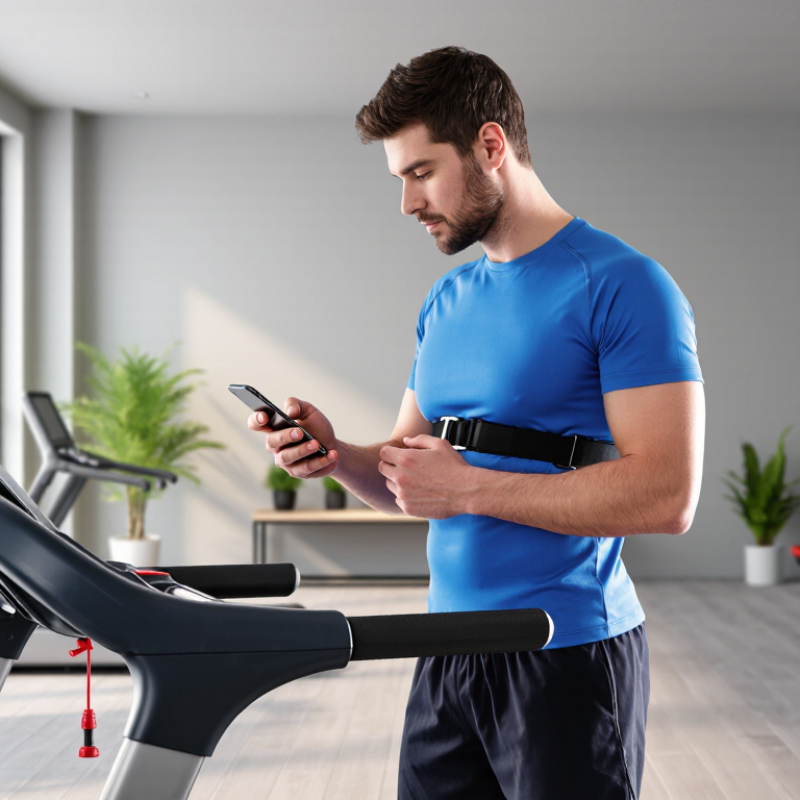
When a heart rate monitor will not connect, check the radio before resetting everything. Bluetooth SIG’s 2024 Market Update forecasts 5.4 billion annual Bluetooth device shipments by 2028. That scale does not guarantee compatibility. The phone must support Bluetooth Low Energy, not only Classic Bluetooth. Check the phone’s technical specifications or system information. Menus can be confusing.
Use a BLE scanner to inspect the device’s GATT services. The Heart Rate Service must appear as 0x180D. This identifier comes from Bluetooth SIG’s Assigned Numbers registry. The monitor should also expose the Heart Rate Measurement characteristic, commonly identified as 0x2A37. If 0x180D is missing, pairing may fail or repeat silently. IDC’s Worldwide Quarterly Wearable Device Tracker reported 537.6 million wearable-device shipments worldwide in 2024. Compatibility checks are becoming less optional.
During testing, keep the monitor awake and within one meter of the phone. Remove old Bluetooth entries, then restart both devices. Do not pair through the phone’s general Bluetooth page if the companion application requires direct BLE discovery. I once blamed a weak battery, but a disabled nearby-device permission caused the failure. That mistake still matters. Check permissions, location-related settings, and operating-system updates. Some scanners show the service only after the sensor detects skin contact. Wait ten seconds. Then inspect the hexadecimal service list again.
2026 How to Fix Heart Rate Monitor Not Connecting to Phone
Check Android 12+ Bluetooth Permissions and iOS Health Access
A heart rate monitor may appear charged yet remain invisible to your phone. In hands-on troubleshooting, permission settings often cause this confusion. Keep the monitor within one meter, then close other fitness apps. Restart both devices before changing settings. Small steps matter.
On Android 12 or newer, open Settings, select Apps, and choose the companion app. Under Permissions, allow Nearby devices. Some phones also require location access for scanning, especially after an older system update. Turn Bluetooth off, wait ten seconds, and turn it on again. If the monitor was previously saved, remove it from Bluetooth settings, then pair it inside the companion app. Do not pair it from the general Bluetooth screen first. That mistake can leave the connection half-finished.
On iOS, check Settings > Privacy & Security > Bluetooth and allow access for the app. Then open Health settings and review Data Access & Devices. Enable permission to read heart rate data, if requested. A monitor can connect successfully but still show no readings when Health access is blocked. Check the sensor’s contact with your skin, too; dry fabric or a loose strap can mimic a software failure. I sometimes overlook this physical check. That is worth remembering. If permissions keep resetting, update the phone, reinstall the app, and review every permission request carefully.
Check Android 12+ Bluetooth permissions and iOS Health access
The chart shows the minimum access checks represented by each platform setting. On Android 12 and later, Bluetooth scanning and connection require the Nearby devices permission. On iOS, Bluetooth access is required for pairing, while Health heart-rate read access is needed only when the app must read heart-rate records from Health. A disabled Bluetooth radio will prevent connection on both platforms.
If a heart rate monitor will not connect in 2026, start with the plain fixes. Reboot the monitor and phone. Then charge the sensor until its indicator shows a stable status. Low power can weaken wireless performance before the device appears completely empty. Keep it close. Bluetooth operates in the 2.4 GHz band, so walls, exercise machines, and crowded wireless spaces can interfere with pairing. Test the connection within one meter of the phone.
Delete the monitor from the phone’s saved Bluetooth list. Do not merely tap “connect” again. Open the companion health or fitness app, enable Bluetooth permissions, and pair the sensor from inside that app when required. Bluetooth SIG’s 2024 Market Update projects 5.4 billion Bluetooth device shipments in 2024 and about 7 billion by 2028. More nearby devices can mean more radio traffic, especially in a busy gym. Temporarily move away from tablets, earbuds, and wireless routers. Still nothing?
Wait ten seconds after switching Bluetooth off, then turn it on again. Restart both devices once more, and check for firmware or operating-system updates. My troubleshooting experience suggests that repeated pairing attempts often make the problem look worse. I sometimes skip the charging check, too. That is a mistake. If the monitor connects to another phone, the original phone likely holds stale pairing data or lacks a required permission. If it connects nowhere, inspect the charging contacts, strap position, and sensor lights before assuming the phone is responsible.
2026 How to Fix Heart Rate Monitor Not Connecting to Phone
A failed connection often starts with outdated software, not a dead sensor. Update the phone through its trusted system settings, then restart it fully. Check that Bluetooth is enabled, but avoid pairing the monitor from the general Bluetooth menu if its companion app manages the connection. Keep the sensor within one meter during testing. Remove old pairings only after recording any saved workout data.
Sensor firmware matters just as much. Open the monitor’s official support app, charge the sensor above 50 percent, and install available firmware updates. Keep the phone nearby while the update runs. Do not close the app or let the screen lock. A weak battery can interrupt the transfer. I once blamed Bluetooth for a failed connection, but the sensor firmware was several releases behind. That mistake cost time.
Phone and sensor Bluetooth core compatibility can also create confusing results. Newer phones may support connection features that older sensors cannot handle consistently. Check the sensor’s supported Bluetooth Low Energy profiles and the phone’s operating system requirements. An update may improve compatibility, but it cannot repair missing hardware support. Test with another compatible phone when possible. If the monitor connects there, review phone permissions for nearby devices, location access, and background activity. These settings differ across operating systems, and I have found that one restricted permission can look like a hardware failure.
When a heart rate monitor will not connect to a phone, I begin with the GATT connection rather than repeatedly tapping “Pair.” GATT, or Generic Attribute Profile, carries the monitor’s heart rate data to the phone. Keep the devices within one meter, charge the sensor, and confirm Bluetooth permissions are enabled. A diagnostic Bluetooth tool can show whether the heart rate service appears and whether measurement data arrives. The standard heart rate service uses UUID 0x180D, while measurements commonly use 0x2A37.
No data usually means more than a weak signal. Open the phone’s Bluetooth settings and remove old entries for the monitor, including duplicates with similar names. Forget nearby watches, tablets, or fitness apps that may still hold a connection. Then restart both devices and pair through the monitoring app, not only through system settings. This step often works, although I do not always get it right on the first attempt. Some phones keep stale pairing records after an app is deleted.
If GATT data still fails, record the exact time, phone model, operating system, app version, and monitor firmware. Note whether the device appears, connects, or disconnects after a few seconds. Screenshots of error messages can help. Contact the manufacturer’s support team through its official channel and provide these details without sharing unnecessary personal information. Ask whether the firmware supports your phone and whether a known compatibility issue exists. Avoid repeated factory resets until support confirms the procedure. It may erase useful diagnostic evidence.
Confirm that the phone supports Bluetooth Low Energy, not only Classic Bluetooth. Check its technical specifications or system information. Menus can mislead.
A BLE scanner should show the Heart Rate Service as UUID 0x180D. The Heart Rate Measurement characteristic commonly appears as 0x2A37. Without 0x180D, compatibility may fail.
Keep the monitor within one meter of the phone. Keep the sensor awake and charged. A short distance reduces signal uncertainty.
Some sensors reveal services only after detecting skin contact. Wear the monitor correctly, then wait about ten seconds. Scan again afterward.
Not always. If the companion application performs BLE discovery, connect through that application. General Bluetooth pairing may not complete the data connection.
Remove old monitor entries and duplicate records from the phone. Forget nearby watches, tablets, or fitness applications that may retain connections. Restart both devices.
Check Bluetooth permissions, nearby-device access, location-related settings, and operating-system updates. I once blamed the battery, but a disabled permission caused the failure.
Record the phone model, operating system, application version, firmware version, and exact failure time. Note whether the monitor appears, connects, or disconnects. Screenshots help.
No. Repeated factory resets may erase useful evidence. Check the GATT connection and measurement data first. I would not reset everything immediately again.
If you are wondering, “why is my heart rate monitor not connecting to my phone,” begin by checking the basics. Confirm that your phone supports Bluetooth Low Energy and can recognize the standard 0x180D Heart Rate Service. On newer operating systems, make sure Bluetooth permissions are enabled, and allow health-related access when required. Then reboot both devices, fully charge the monitor, and pair them again while staying within a short, unobstructed 2.4 GHz Bluetooth range.
If the connection still fails, install available updates for the phone and sensor, since outdated firmware or Bluetooth components may prevent compatibility. You can also test whether heart rate data is being transmitted through the device’s GATT service. Remove unused or conflicting pairings, close other fitness applications, and repeat the pairing process from the correct app rather than the general Bluetooth menu. If the monitor remains undiscoverable or sends incomplete data after these steps, record the results and contact the manufacturer’s technical support for further diagnosis.

Carpe fitness